Common Gaming Console Problems and When to Get Professional Help
Gaming consoles provide hours of entertainment, but regular use, heat, dust and accidental damage can eventually cause performance problems. A console may stop turning on, overheat, become unusually noisy, lose its display signal or fail to read games properly. Recognising the warning signs early can help prevent a minor fault from developing into a more expensive repair.
Some console problems are caused by simple issues such as a loose cable, blocked ventilation or outdated software. Other faults may involve the HDMI port, cooling system, storage drive, power supply or internal circuit board. Proper diagnosis is important because different problems can produce similar symptoms.
Console Not Turning On
A gaming console that does not turn on may have a damaged power cable, faulty socket, internal power-supply problem or motherboard fault. In some cases, the console may briefly light up or make a sound before switching off again.
Check that the external power cable is properly connected and try a known working wall socket. If there is visible damage, an unusual smell, liquid exposure or repeated shutdowns, unplug the console and arrange professional assessment instead of repeatedly attempting to power it on.
Common warning signs:
- No lights or startup sound
- Console switches off immediately
- Power light flashes unexpectedly
- Console only starts occasionally
- Unusual smell or excessive heat
- No response from the power button
- Overheating and Loud Fan Noise
Overheating and Loud Fan Noise
Gaming consoles generate heat during normal use, particularly when running demanding games. The cooling fan moves heat away from the processor, while ventilation openings allow warm air to leave the console.
Dust buildup, restricted airflow or a failing fan can make the console run hotter and louder. Repeated overheating may cause reduced performance, sudden shutdowns or internal component damage. Keep the console on a stable surface with clear space around its vents and avoid placing it inside a tightly enclosed cabinet.
Common warning signs:
- Fan becomes unusually loud
- Console feels excessively hot
- Games slow down or freeze
- Console shuts down during gameplay
- Hot-air vents have weak airflow
- Overheating warnings appear
- HDMI and Display Problems
HDMI and Display Problems
A console may turn on normally but fail to display an image on the television or monitor. The problem could involve the HDMI cable, display settings, television input, damaged HDMI port or an internal video circuit.
Start by checking the television input and testing another suitable HDMI cable or display. If the HDMI port feels loose, looks bent or only works when the cable is held at a certain angle, the port may require professional inspection and repair.
Common warning signs:
- No picture on the display
- Flickering or interrupted image
- Distorted colours or visual lines
- Loose HDMI connection
- Sound works but the picture does not
- Display cuts out when the cable moves
- Disc-Drive and Game-Reading Problems
Disc-Drive and Game-Reading Problems
Disc-based consoles may stop accepting, ejecting or reading game discs correctly. Dirt, disc damage, alignment problems or faults within the optical drive can cause these issues.
Check the disc for fingerprints, scratches or cracks and gently clean it using a soft lint-free cloth. If several clean discs produce the same problem, the console’s disc drive, laser or internal mechanism may need assessment.
Common warning signs:
- Console does not accept discs
- Disc becomes stuck
- Games fail to load
- Unusual clicking or grinding noises
- Disc ejects unexpectedly
- Several discs cannot be recognised
- Storage and Installation Problems
Storage and Installation Problems
Modern games require a significant amount of storage space. When the internal drive becomes full or begins to fail, the console may experience slow loading, installation errors, corrupted files or missing games.
Removing unused games may provide more free space, but repeated storage warnings can indicate a deeper fault. A failing storage drive may require replacement, system restoration or data-transfer assistance.
Common warning signs:
- Games take longer to load
- Installation repeatedly fails
- Saved data becomes corrupted
- Console reports storage errors
- Games disappear from the library
- System freezes during updates
- Software and System-Update Errors
Software and System-Update Errors
Console software controls game installation, online features, storage and system settings. An interrupted update, damaged system file or network problem can prevent the console from starting or operating normally.
Restarting the console and checking the internet connection may resolve minor issues. Avoid disconnecting power while an update is installing. If the console remains stuck in a startup loop or repeatedly displays system errors, professional software diagnosis may be required.
Common warning signs:
- Console becomes stuck during startup
- Updates fail repeatedly
- Applications close unexpectedly
- System menus freeze
- Error messages continue appearing
- Games fail after a system update
- Controller and Connection Problems
Controller and Connection Problems
Controller problems can involve batteries, charging cables, USB ports, wireless connections, buttons or analogue sticks. Before assuming that the console is faulty, test another compatible controller or cable if one is available.
Wireless interference, outdated controller software and damaged charging ports can also affect connectivity. If several controllers fail to connect to the same console, its wireless hardware or software may need further testing.
Common warning signs:
- Controller does not connect
- Buttons respond incorrectly
- Analogue sticks move without input
- Controller disconnects during gameplay
- Charging is slow or intermittent
- USB connection does not work
- USB and Charging-Port Problems
USB and Charging-Port Problems
Console USB ports are used for controllers, storage devices and other accessories. Repeated plugging, accidental pulling or damaged connectors can make a port loose or unreliable.
Avoid forcing a cable into a damaged port because this may bend the internal contacts. If multiple cables fail or accessories disconnect when moved, the USB port or internal connection may need repair.
Common warning signs:
- Controller does not charge
- USB device is not recognised
- Cable feels loose inside the port
- Connection works only at an angle
- Port appears bent or damaged
- Accessories disconnect unexpectedly
- Liquid Damage to Gaming Consoles
Liquid Damage to Gaming Consoles
Spilled drinks and other liquid exposure can affect the power supply, ports, cooling system and motherboard. A console may continue working temporarily even when moisture has reached its internal components.
Switch off and unplug the console if it can be done safely. Do not reconnect the power or use direct heat to dry it. Professional inspection should be arranged because hidden moisture and corrosion may continue causing damage.
Common warning signs:
- Console stops working after a spill
- Power problems begin suddenly
- Ports become unreliable
- Unusual smell or heat develops
- Visible moisture reaches the vents
- Corrosion appears around connectors
- How to Look After Your Gaming Console
How to Look After Your Gaming Console
Good placement and regular care can reduce the risk of overheating and connection problems. Keep the console on a firm, open surface with enough space around its air vents. Avoid placing drinks nearby or covering the console while it is operating.
Clean dust from the exterior vents using safe, gentle methods and keep cables organised to reduce pressure on the ports. Do not open the console or its power supply unless you have appropriate training, as internal components can present electrical and damage risks.
Helpful care tips:
- Keep ventilation openings clear
- Use the console on a stable surface
- Avoid enclosed cabinets during use
- Keep food and drinks away
- Handle HDMI and USB cables carefully
- Install system updates properly
- Maintain sufficient storage space
- Arrange assessment for recurring faults
- When to Arrange Professional Diagnostics
When to Arrange Professional Diagnostics
Professional diagnosis is recommended when basic external checks do not solve the problem. It is also important when the console has liquid damage, a loose port, repeated overheating, unusual noises or complete power failure.
A technician can inspect the relevant hardware and software before recommending a repair. Accurate diagnosis helps avoid unnecessary part replacement and provides a clearer understanding of the fault, expected costs and available options.
Gaming Console Repair in Gisborne
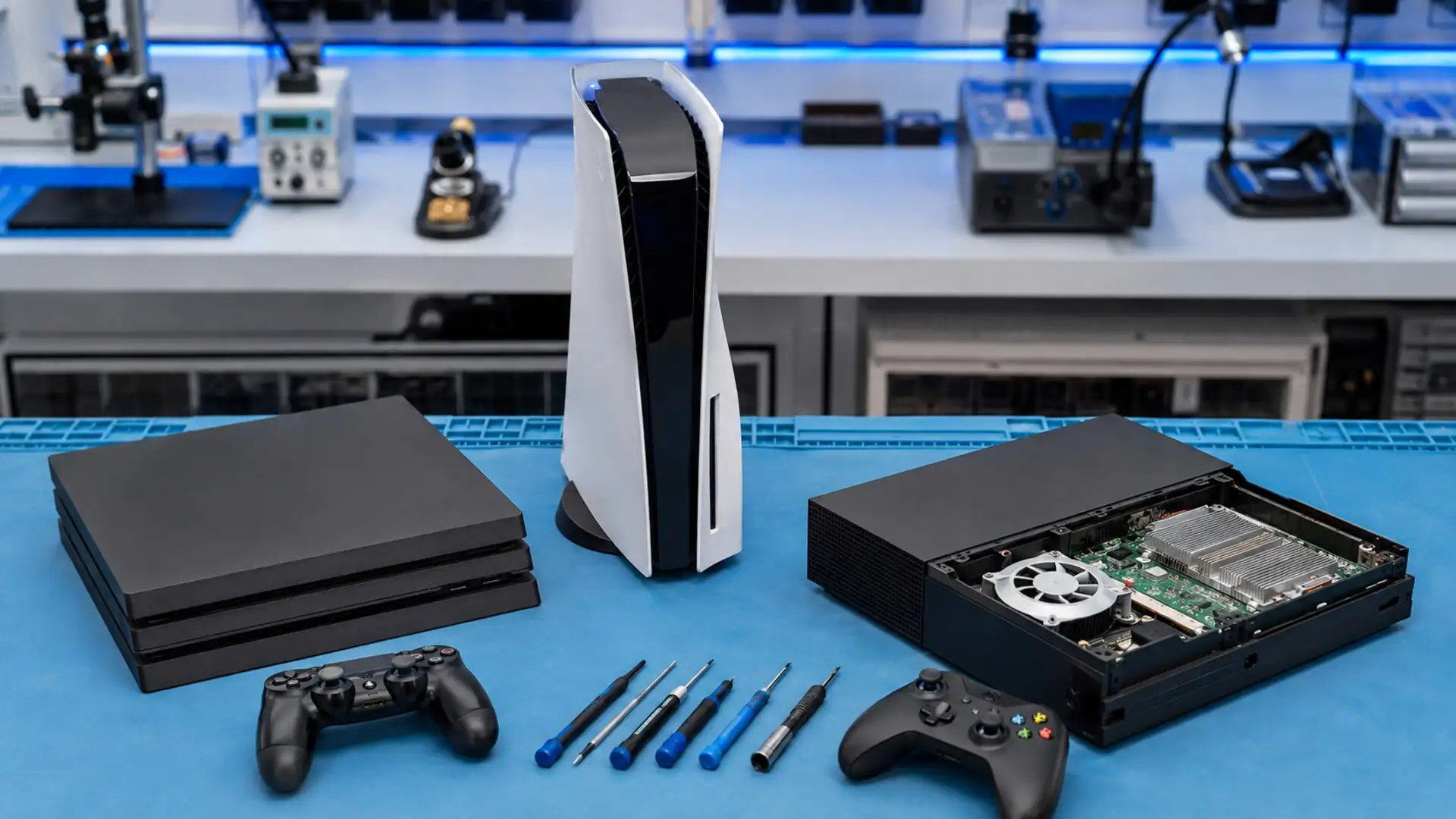
Gisborne Tech Repair Hub provides diagnostics and repair services for supported PlayStation and Xbox consoles. We assess common problems involving power, overheating, HDMI ports, disc drives, storage, USB connections and system software.
The appropriate repair depends on the console model, identified fault, overall condition and availability of replacement parts. Contact us with your console model and a description of the problem to arrange an assessment.
Services may include:
- Console fault diagnostics
- HDMI and display-port assessment
- Overheating and fan checks
- Disc-drive problem diagnosis
- Storage and software troubleshooting
- USB and controller connection checks
- Power-fault assessment
- Liquid-damage inspection
- Final Thoughts
Gaming Console Repair in Gisborne
Gaming-console problems should not always be ignored, especially when the device overheats, shuts down unexpectedly or develops an unreliable power connection. Early diagnosis can help identify the cause before the fault affects additional components.
Start with safe external checks such as inspecting the cables, ventilation and display connection. If the problem continues, arrange professional diagnostics to determine the most suitable repair option for your console.